

Teach Arabic writing live, step by step
This guide shows the whiteboard as it works today, with screenshots of the current version. Everything is free and needs no account.
Video walkthrough: start your lesson in two minutes
A silent video with captions; its full transcript is below.
Video transcript
- Start on the board: write with the pen, or add text to the page.
- Open “Activities” and choose a lesson from “Starter lessons”.
- You see the new lesson’s pages first. Press “Add after my pages”.
- The new lesson’s pages are added after the pages already on your board, and your earlier work stays as it was.
- When you’re ready, press “Share”, then “Start a live lesson”.
- Give your students the lesson code or link. They don’t need to create an account.
- A student joins with a nickname and watches the board.
- When you move to another page, the student sees it too.
- The student asks to write, and you allow it in the “Students” panel.
- The student writes their answer, and it appears on your board.
- Before you leave, choose “Download lesson file” to open and edit it later.
- You can also choose “Download lesson as PDF” to print it.
- Live lessons are temporary: they are deleted 24 hours after they start. Download your work before then if you want to keep a copy on your device.
-
Open the board and start a lesson
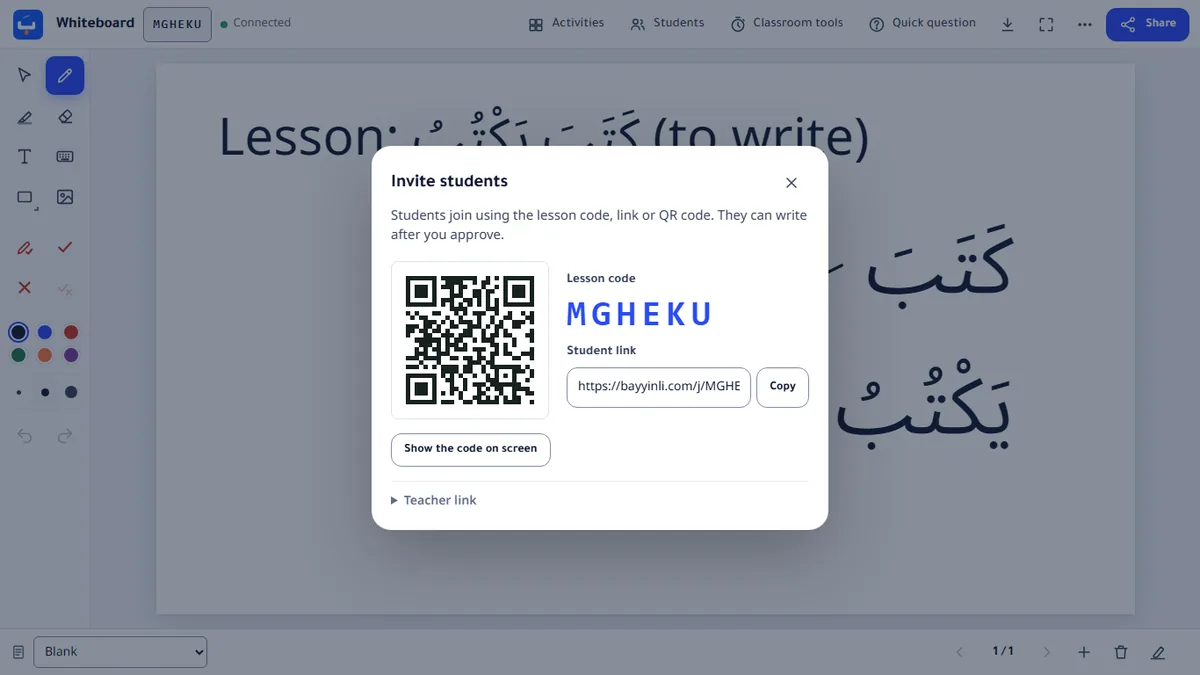
Open the whiteboard, choose Share, then Start a live lesson. You get a six-character code, a link and a QR code. Keep the teacher link to yourself: it gives control of the board.
-
Students join from any device
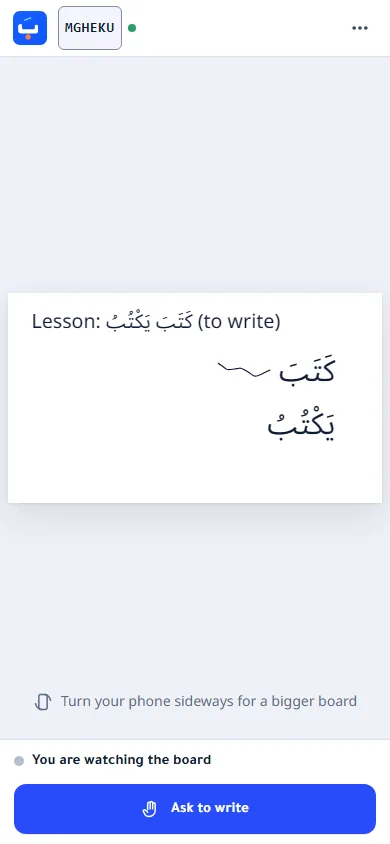
Students open the link, scan the QR code or type the code on the Join page, then choose a nickname. They see the board straight away but cannot write until you allow it.
-
Let students write, and see who wrote what
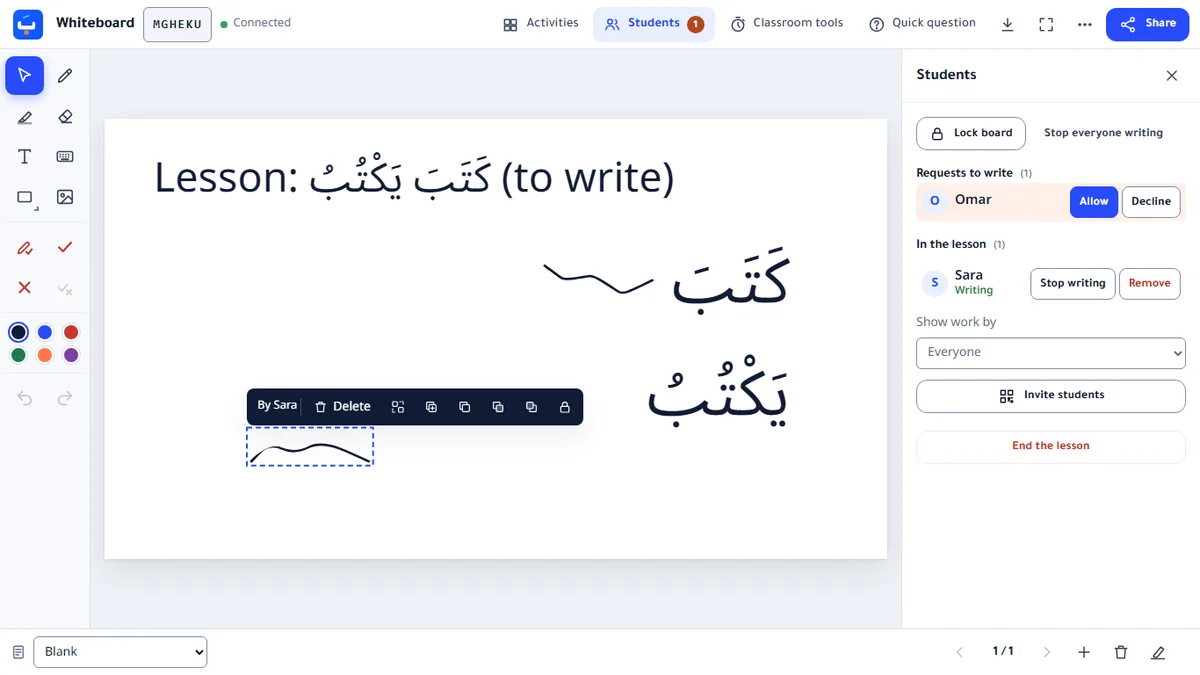
When a student asks to write, choose Allow in the Students panel. Select anything on the board to see who made it, or show one student’s work at a time on your own screen.
-
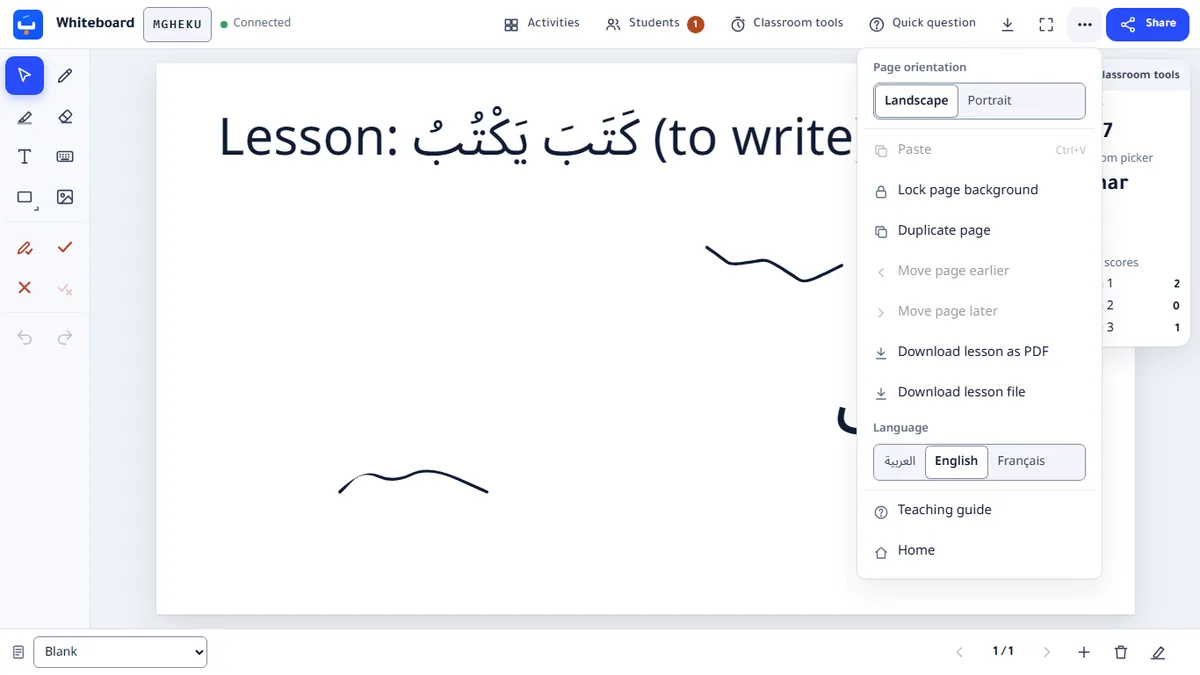
Edit, arrange and lock
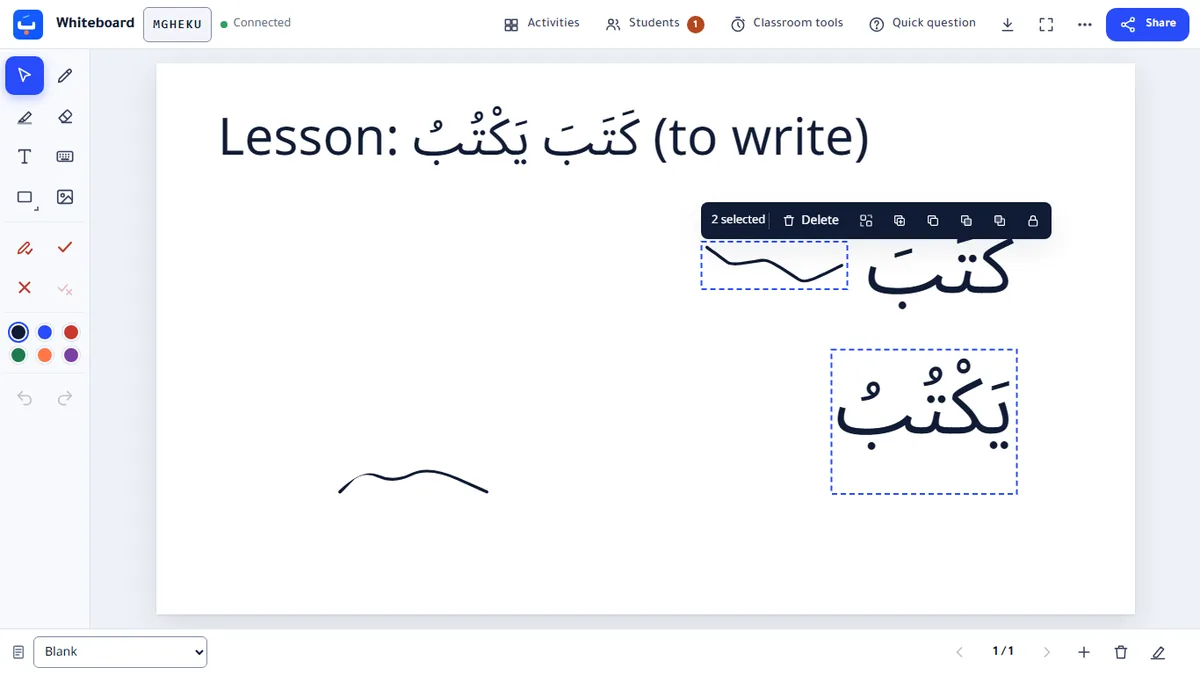
With the select tool, drag a box or Shift-click to choose several items, then move, duplicate, copy, bring to front or lock them. Lock the page background so a worksheet or PDF page stays in place. On a phone, use Select several.
-
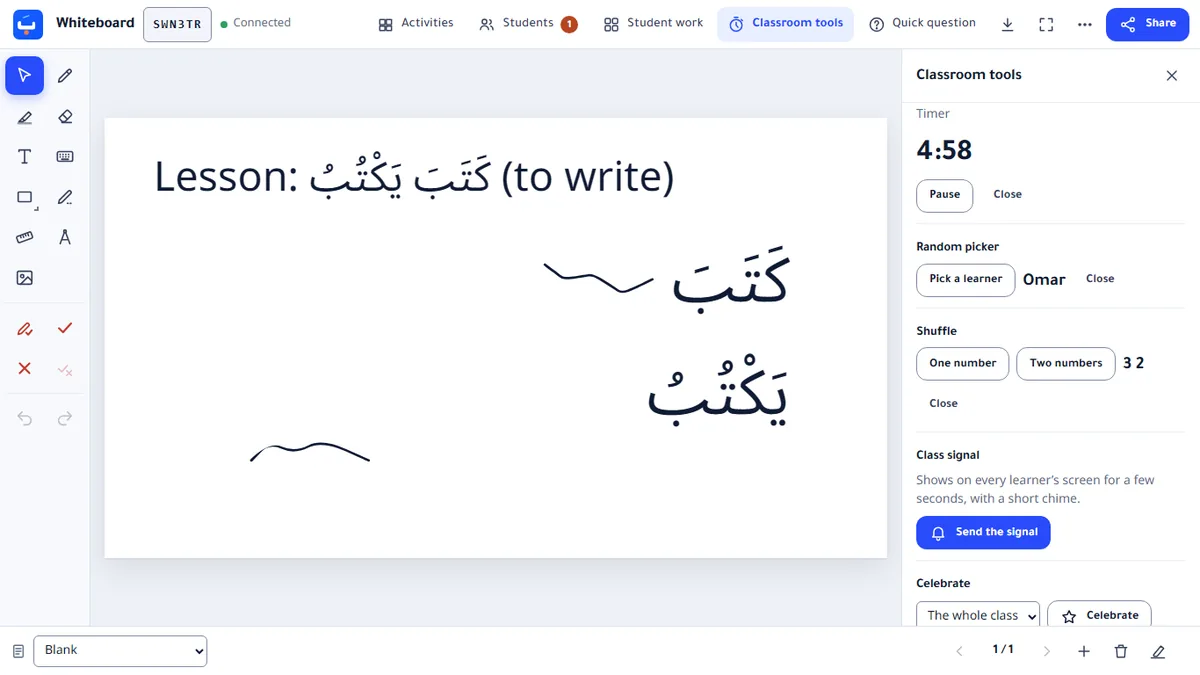
Classroom tools
Open Classroom tools for a timer, a random pick from the students who are connected, number shuffling, team scores and a laser pointer. Students see the results on their screens; the laser leaves no ink on the board.
-
Save the lesson and use it again
Download the whole lesson as a PDF to print or share, or as a lesson file. Later, open the lesson file on a board that is not shared to continue it or teach it again.
How to adapt an activity
Maths, chemistry and biology material on the board keeps its settings: you change the object that is already there, without adding another.
- Choose the selection arrow in the toolbar.
- Click or tap the object to select it. Right after you add material it is already selected and Change settings has the keyboard focus: press Enter to open it.
- Choose Change settings in the bar above it.
- Change its values.
- Choose Apply.
With the keyboard: press O to reach the objects on the page. The arrow keys go from one to the next in reading order; each is named as you reach it and framed on the board. Enter selects it and its bar takes the focus, with Change settings, Edit text or Edit table; Escape returns to the object, and Escape again leaves the list. Learners can go through the objects but not select them.
The object changes where it is, on its page, at its size. Undo takes the whole change back in one step; Cancel closes without changing anything.
The selected object and its bar
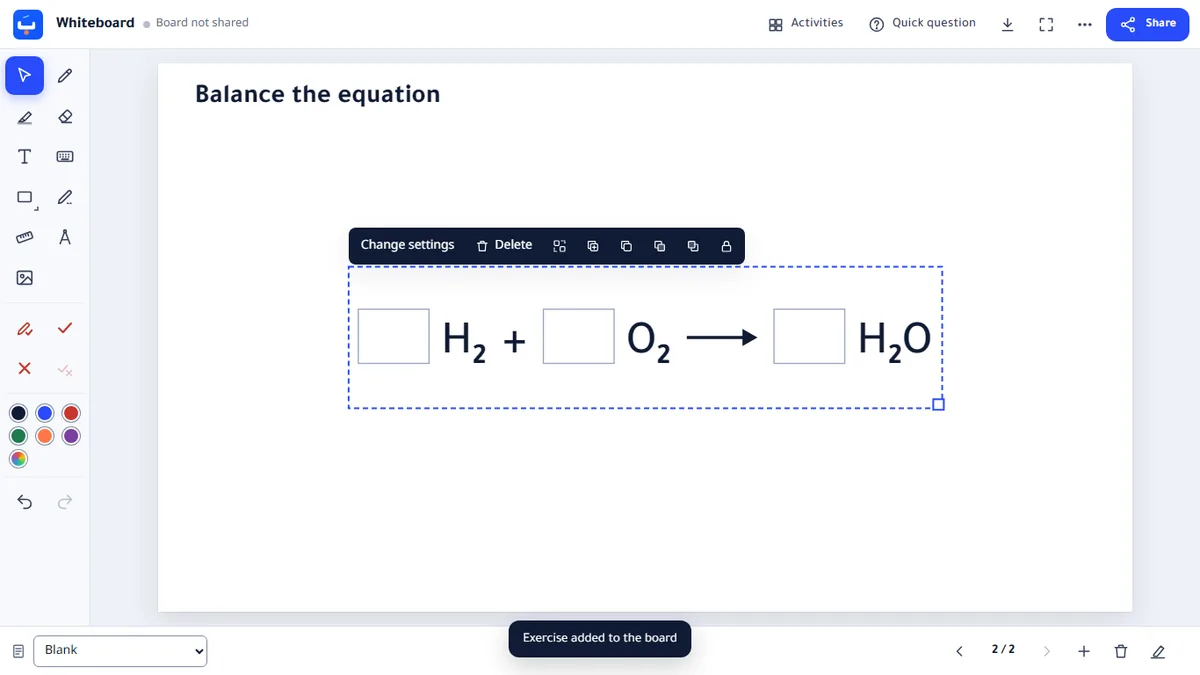
Selected, an object has a bar above it. Change settings opens its settings, filled in with the values it has now.
Example: another reaction
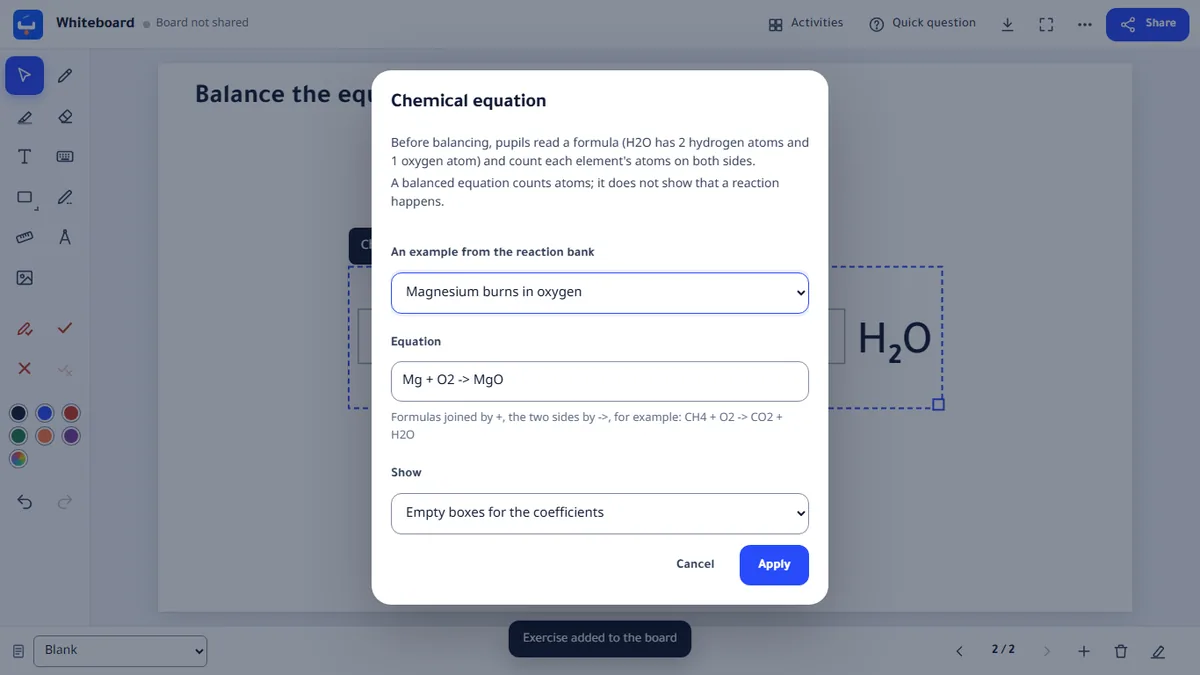
On a chemical equation, Change settings offers the school reactions of the reaction bank. Choose “Magnesium burns in oxygen”, keep “Empty boxes for the coefficients” and choose Apply: the same object now asks to balance Mg + O2 → MgO. You can also type an equation yourself. Before balancing, pupils read formulas and count atoms; a balanced equation does not show that a reaction happens.
Example: graph paper first
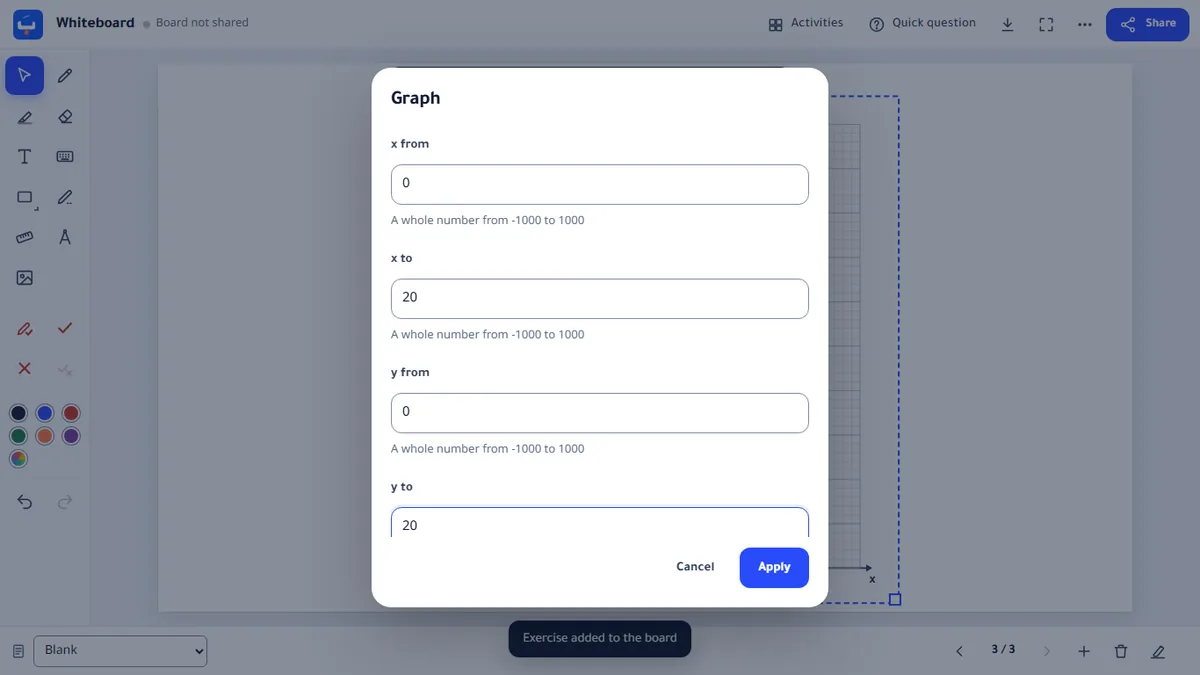
A new graph is blank graph paper from 0 to 10. Change settings changes its range (for example x and y from 0 to 20) and its grid lines; Apply changes the paper in place.
Further study, when the class is ready: type a function of x in one of the three function fields (for example 2x). To go back to blank paper, empty the fields and choose Apply.
What the other material lets you change
- Times grid: the tables, the multipliers, blank or with the answers, and the digits.
- Fraction: bar or circle, the number of equal parts, the shaded parts, the label and the digits.
- Clock: the time, the numbers on the face, the minutes around it, the digital time and the digits.
- Laboratory equipment: which piece it is, and how full it is.
A worksheet put on the board as pages is a picture: it has no settings. Change it in the worksheet editor and put it on the board again.
What is kept, and where
- A board you have not shared is saved only in this browser, on this device.
- A live lesson, with its pictures, nicknames and answers, is kept on the server so everyone sees the same board, and is deleted 24 hours after it started. Nothing extends it, and the teacher can delete it sooner.
- Lesson files and PDFs stay on your device. Nothing is kept in an account: the site has no accounts.